
User guide · Administrator
Setting Fulfilra up
You will get a working catalog in about ten minutes, name the people who run it, connect it to a Jira project, and know where to look when something is wrong.
Where the settings are
Jira settings → Apps → Fulfilra. Seven tabs. Jira renders this page only for site administrators, and Fulfilra re-checks that on every action behind it, so an ordinary user who finds the URL gets nothing.
1. Setup
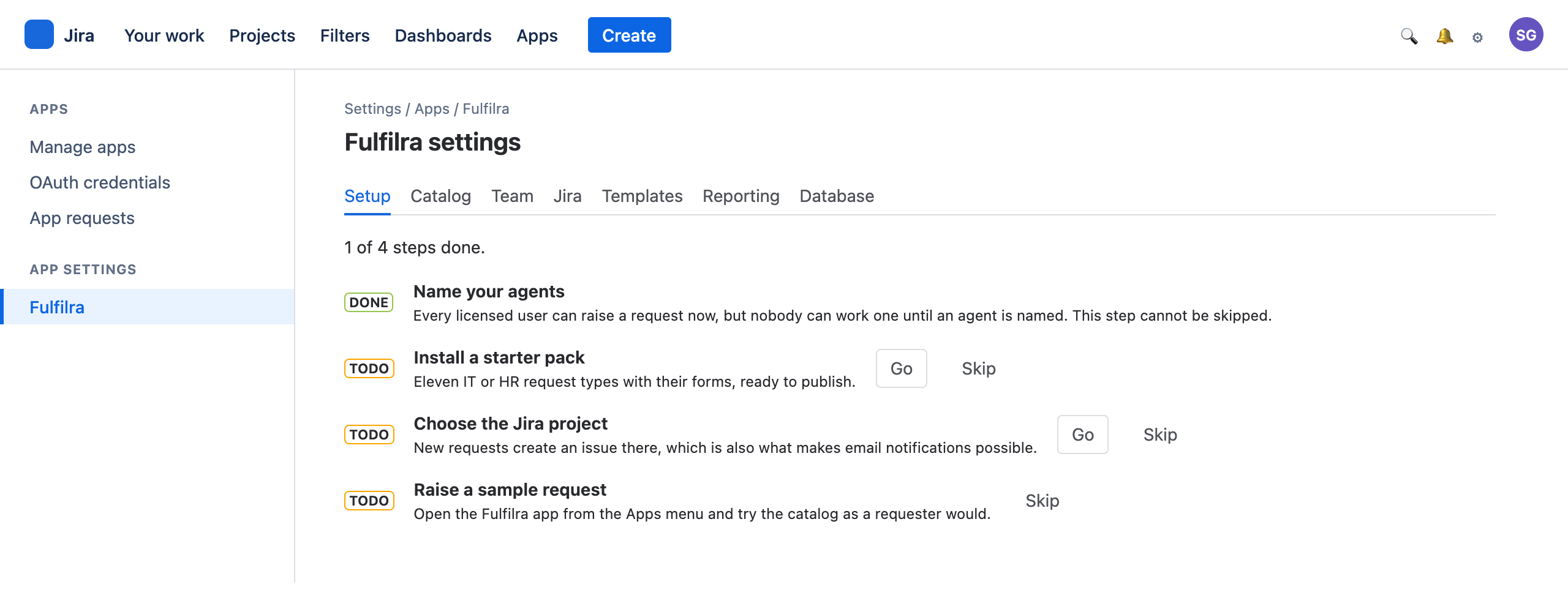
Four steps, in the order that gets you to a working product fastest. Completion is worked out from your actual configuration, not remembered — so if you do something from another tab, this tab notices.
“Name your agents” has no Skip button, and that is deliberate. The moment Fulfilra is installed, every licensed user on your site can raise a request. Nobody can work one until you name an agent. An install where that never happens looks exactly like a broken product: a full catalog, requests piling up, and a queue nobody touches. Fulfilra will not let you walk past it.
2. Team
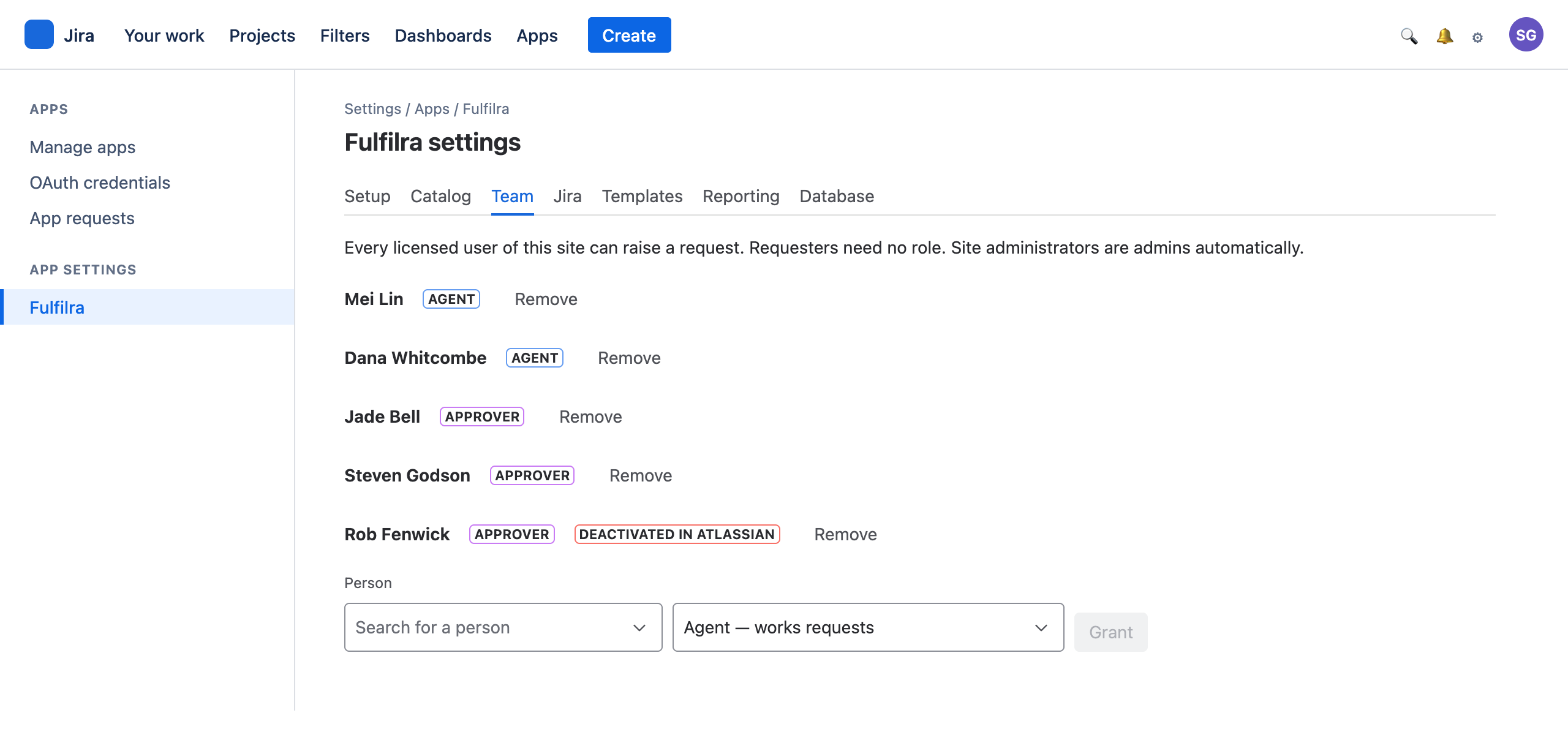
Three roles, and only two of them are stored here.
| Role | Who has it | How |
|---|---|---|
| Requester | Every licensed user of the site | Automatic. No row, no invitation, no provisioning |
| Agent | People who work requests | You grant it here |
| Approver | People who can be named on an approval step | You grant it here |
| Administrator | Whoever administers the Jira site | Derived from Jira, every time. Not stored, not editable |
Pick a person from the Jira user picker, pick a role, press Grant.
Why administrators are not a list you edit. If Fulfilra kept its own list of administrators, that list would eventually disagree with Jira's — somebody leaves, they lose Jira admin, and they keep Fulfilra admin. Asking Jira on every invocation costs a fraction of a second and cannot go stale.
Why not Jira groups for agents and approvers? Because an approval is a named person's decision. If approvers were a group, an unrelated administrator renaming or re-membering that group would silently change who can approve your company's spending, with nothing in Fulfilra recording that it happened.
Deactivated people are flagged. Fulfilra reads account status from Atlassian, so somebody who has left shows as Deactivated in Atlassian here — and any approval still waiting on them is listed for you. Nothing is reassigned automatically; change the request type's approval step and the next request goes to the right person.
3. Templates
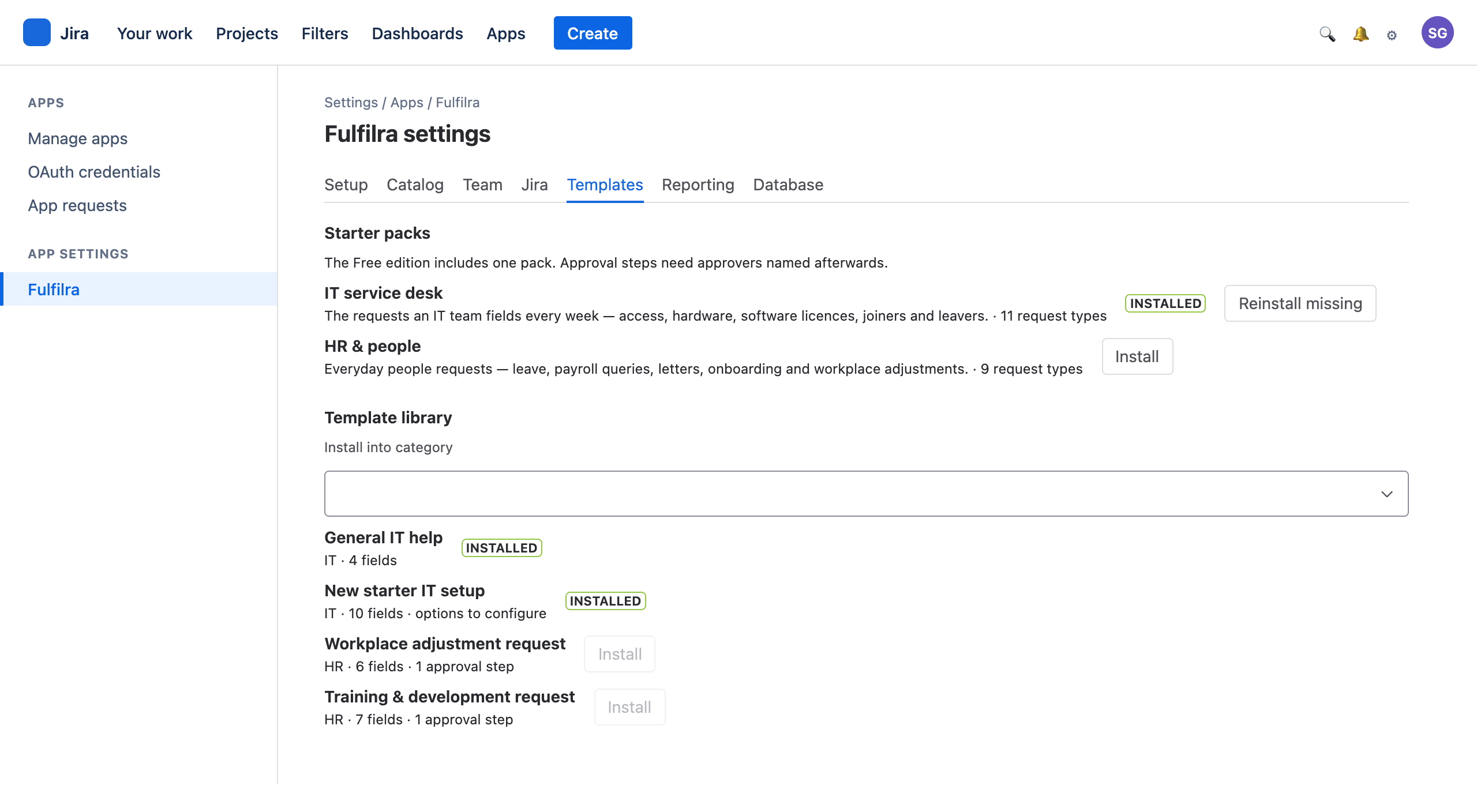
The fastest route to a real catalog. Two starter packs:
- IT service desk — 11 request types: general help, new starter setup, leaver deprovisioning, hardware, software and licences, application access, password reset, VPN and remote access, shared mailboxes, mobile and SIM, file and email restore.
- HR & people — 9 request types: ask HR, onboarding, employment letters, leave, flexible working, payroll queries, personal details changes, training and development, workplace adjustments.
Each type arrives with its form written. Install a pack, then edit what does not fit — several carry starter option lists (departments, offices) explicitly marked for you to replace.
Both packs and the full 20-template library are yours — there is nothing to unlock. Installing a pack twice is safe: it fills in anything missing and leaves what you have alone.
4. Catalog
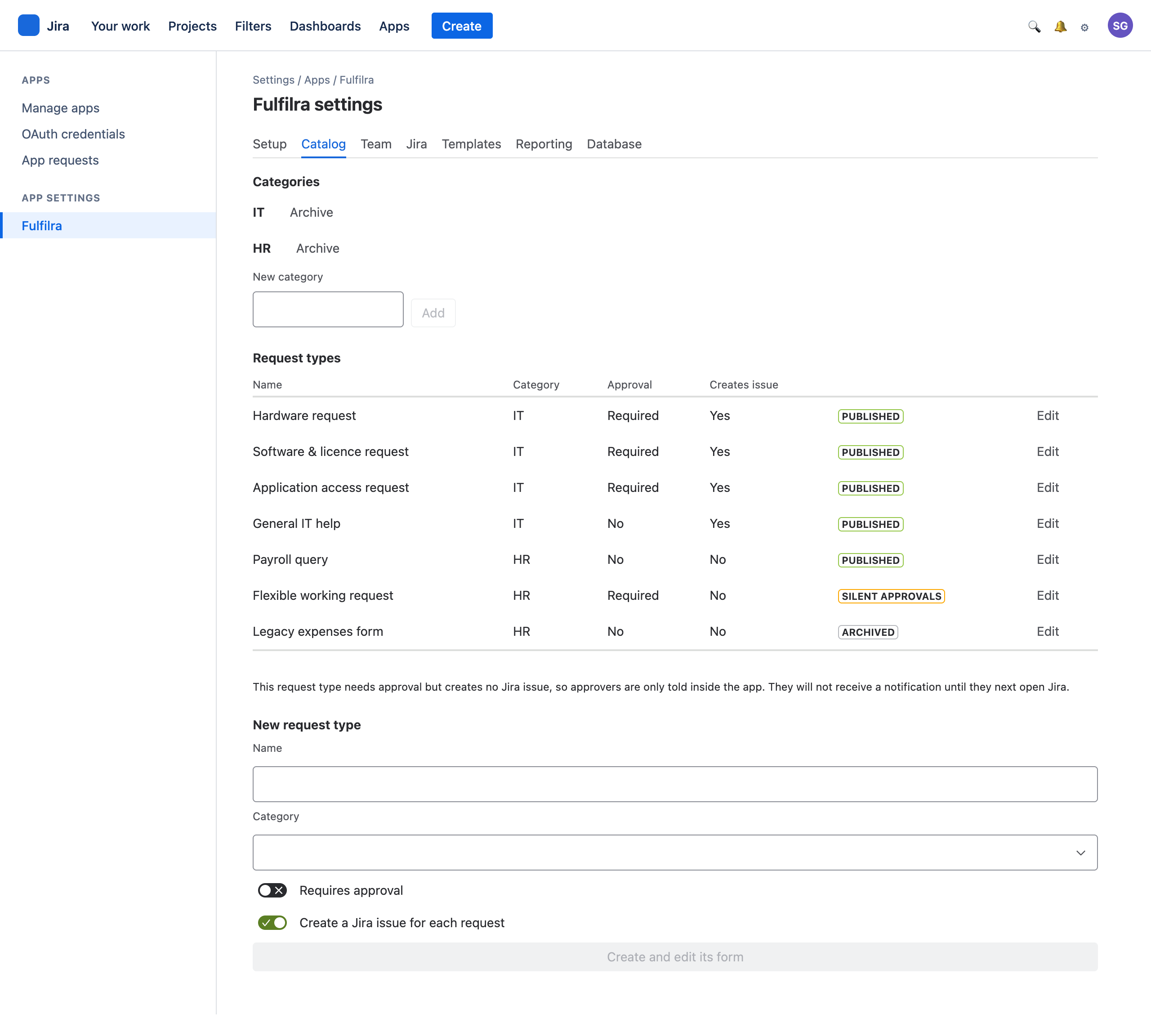
Categories are the headings requesters see. Request types are the forms.
Each type shows a state:
- Published — visible in the catalog.
- Archived — hidden from requesters. Existing requests are untouched; archiving is how you retire a form without breaking its history.
- No approver — a fault. The type requires approval but names nobody, so nobody can raise it. It outranks every other state, because saying “Published” beside such a type would be a lie. Add an approval step naming one person and it clears.
- Email via notices, Emails refused or Silent approvals — against a type that requires approval and creates no Jira issue, saying how its approvers are reached. See below.
Types that create no Jira issue, and the notices issue
If a request type requires approval but does not create a Jira issue, there is no issue for Jira to email anyone about — a Forge app has no mail transport of its own. Without the notices issue, its approvers are told only inside Fulfilra.
The notices issue fixes that. On the Jira tab, choose a project and press Create the notices issue: Fulfilra creates one issue there that holds no request content, and Jira's emails for these requests go out on it — to approvers when a decision is needed, and to licensed requesters when their request moves. Each names the request reference and the kind of event, never the summary, a form answer, a step name or a comment. The catalog shows Email via notices when it works, Emails refused (amber) when Jira refused the last one, and Silent approvals (red) when there is none or it has gone.
Use a small dedicated project. Everyone the emails reach needs Browse on it; in your service desk's project that grant would let them read every issue in it. In a service project, exclude it from SLA goals and automation, and leave it open. A portal customer can never be emailed this way.
That means an approval raised on Friday afternoon may not be noticed until Monday, and nothing anywhere looks broken in the meantime. It is the single most damaging configuration available in this product, which is why creating an approval-bearing type turns issue creation on by default and why the catalog labels any type where you have turned it off.
If you choose it deliberately — for something confidential that should not appear on a board — create the notices issue, and check the lozenge reads Email via notices.
Approval reminders
On the Team tab, Approval reminders chooses how long an approval may wait before its approver is reminded — 1 to 14 days, or off.Reminders are off until you choose a number of days here. One reminder a day, to the same approver only, by Jira email where one can be sent and always to their Inbox, until they decide.
Editing a type
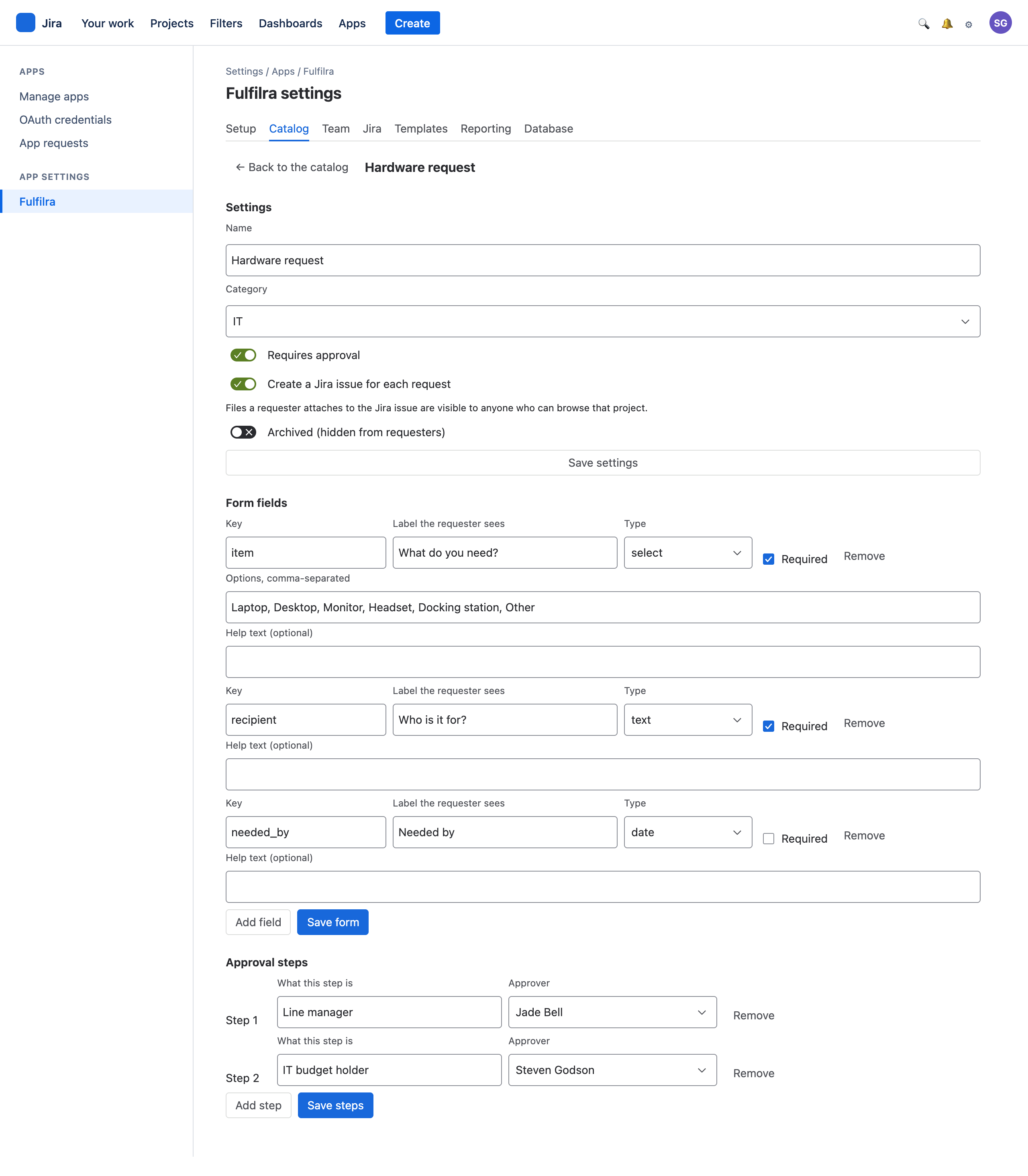
Settings. Name, category, whether it needs approval, whether it creates a Jira issue, and whether it is archived.
Default priority is where new requests of this type start — Urgent, High, Normal (the default) or Low. It orders the agents' queue and is never shown to requesters.
Target (working days) is the promise to the requester: 1 to 60, or empty for no target, which is the default and what every template installs with. It counts from when work can start — at submission, or at the final approval — so an approver's week off is not charged to the service team. Each request keeps its own copy, so editing the type later never changes a promise already made. If the Jira project has SLAs, they run separately and Fulfilra cannot see them: set this to match your resolution goal, or leave it empty. For a type that creates an issue, the issue's Due date is set to the target after the issue exists; if Jira refuses it, the Jira tab lists a sync problem and the request is unaffected.
The working week sits above the type list: tick the days your team works, Monday to Friday by default. Targets count only those days. Public holidays are not skipped, and dates are UTC. Changing it affects dates set from now on; dates already set stay as they are.
Form fields. Each field has a key (stable, used in storage), a label (what the requester reads), a type, and whether it is required. Select and multiselect fields take a comma-separated option list.
Editing is safe in one direction and blocked in the other: you can rename a label, change requiredness and add fields freely, but a field that already has submitted answers cannot be deleted. Fulfilra refuses and tells you which one — deleting it would orphan the answers on every historical request.
Approval steps. Up to three, decided in order. Each names one person, who must already hold the approver role — grant it on the Team tab first.
Ask for approval only where a “no” is genuinely possible. A step that is always approved adds a day to every request and teaches everyone to click through without reading.
5. Jira
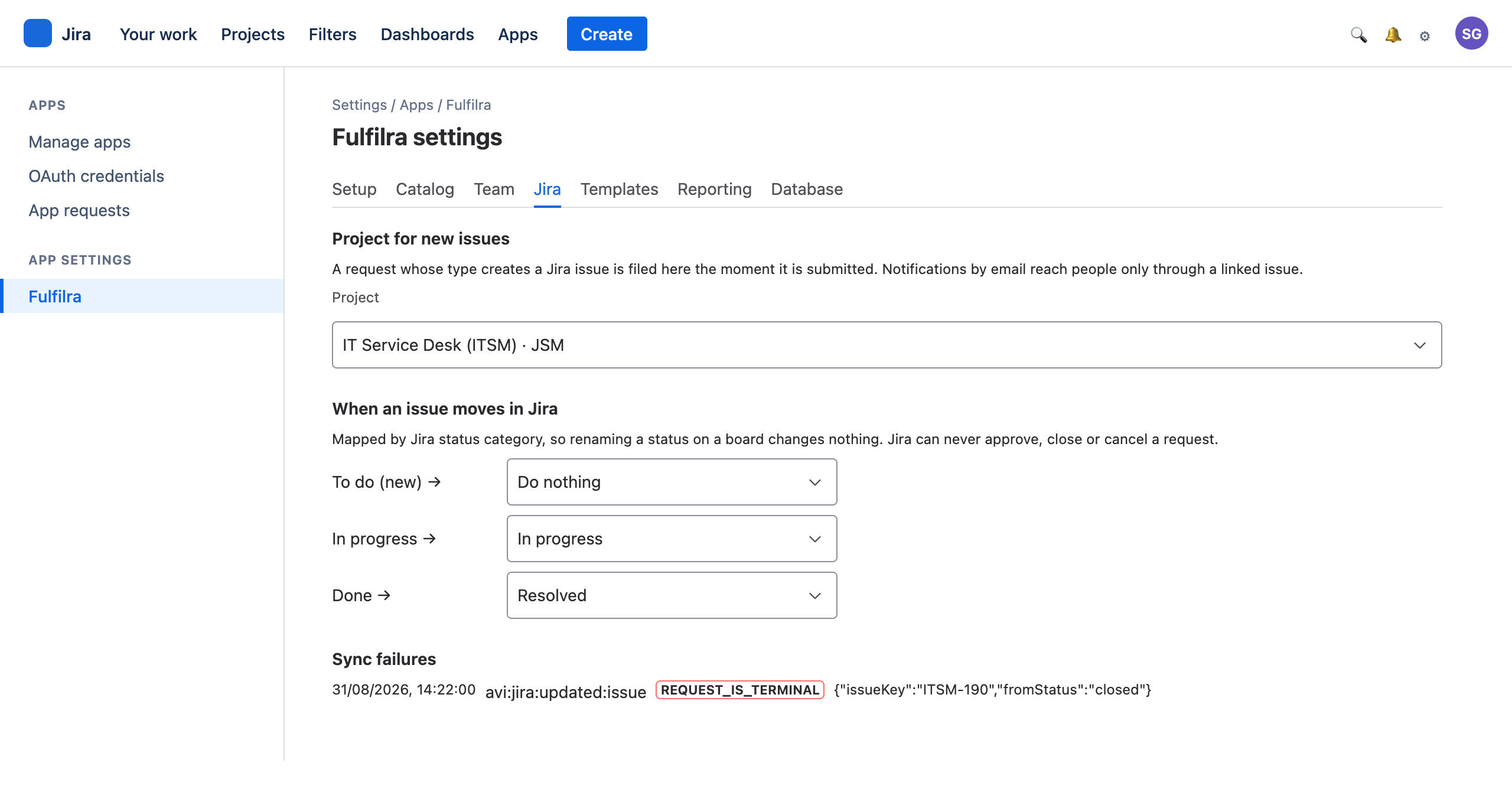
Project for new issues. Pick one. Every request whose type creates an issue is filed here the moment it is submitted — not in five minutes, not on a queue.
This choice does more than route work. Notification by email is only possible through a linked issue, so a site with no project set is a site where nothing reaches anybody by email. A JSM project is the usual choice; any project works.
When an issue moves in Jira. Mapping is by Jira status category — To Do, In Progress, Done — not by status name. Rename a status on a board and this keeps working, which is the point: names change constantly and categories do not.
The defaults:
| Category | Does | Why |
|---|---|---|
| To Do (new) | Nothing | An issue dragged back to To Do is usually a board being tidied, not a request being un-started |
| In progress | Moves the request to In progress | |
| Done | Moves the request to Resolved | Not Closed — closure is the requester's to give |
You can change these. What you cannot do is map a category to a terminal status: Fulfilra refuses to save a mapping that would let Jira approve, reject, close or cancel a request, and says so rather than accepting it and silently ignoring every event. Those decisions stay with people.
Rules for a named Jira status
Categories are three, and a JSM project routinely has four statuses inside In Progress alone — “In Progress”, “Waiting for customer”, “Escalated”, “Pending vendor”. Mapped by category only, an agent moving a card to Waiting for customer changes nothing in Fulfilra and reports nothing either: the category still says In Progress, and the request is already there.
A named rule fixes that, and it beats the category in both directions — the request follows that status when somebody moves the card, and moving the request sends the issue back to it. Pick the status from the list (those are your project's own) and say what it means. “Moves nothing” is a valid answer, and it silences one noisy status without silencing its whole category.
What Fulfilra sends to Jira
The edge runs both ways. When a request moves in Fulfilra the linked issue follows: the app reads the transitions your workflow actually offers and takes the one landing in your named status, or failing that in the right category. Public comments are posted to the issue. An agent's note on a transition is posted as an internal JSM comment, and an internal note goes to the issue's work log — both surfaces a portal customer cannot reach, which is what keeps an internal note internal.
Two things it will not do. It never invents a field: a transition screen demanding something it cannot answer honestly — a custom “Root cause” — stops and says so, though a required Resolution is filled from your site's own list, preferring “Done”. And it does not fight the inbound direction: Jira marks the events the app itself caused, and those are dropped on arrival.
Publishing request status to Jira
Off until you turn it on, and there is no per-project setting. One toggle publishes for every request in every project that has a linked issue. The warning sits above the switch for that reason.
What it does: Fulfilra writes a small status record onto each linked issue, so Jira itself can search and report on your requests. Four values, and nothing else — where the request has got to, its approval state, the day the approval step now waiting began, and the request's target date. No names, no account ids, no summaries, no priority and nothing anybody typed. That is a deliberate limit, not an oversight: what is written is stored by Jira rather than by Fulfilra, and it can be read by anyone who can browse the issue and by every other app installed on your site.
Turn it on and the card shows the four search names and some queries worth copying. There is no other place to find them — nothing in Jira lists an app's search names.
| You can ask Jira | And it answers |
|---|---|
fulfilraApproval in (“none”, “pending”, “approved”, “rejected”) | Every request Fulfilra has published. Start here |
fulfilraPhase = “indeterminate” | Requests being worked on |
fulfilraApproval = “pending” | Requests waiting on an approval |
fulfilraPhase = “new” AND fulfilraApproval = “approved” | Approved requests nobody has started yet |
fulfilraAwaitingApprovalSince <= -5d | Approvals waiting more than five days |
fulfilraTargetDate < now() AND fulfilraPhase != “done” | Requests past their target date and not finished |
There is no “waiting on me” search, and there cannot be. These names carry no account ids — that is the privacy decision the whole feature rests on — and Jira caches a search function’s answer for the whole site rather than for each person, so a personal search would show every approver the same list. Your own queue is the Approvals tab and your inbox, where the app works it out for whoever is looking.
Run the first one before you trust any of the others. It matches everything Fulfilra has published, so an empty result tells you nothing has been published — a different problem from a filter that found no matches. The rest are real filters and will correctly return nothing on a young installation: an approval raised this morning is not five days old. -5d means five days ago; 5d would mean five days from now, and would match every pending approval rather than the old ones.
Some requests can never be found this way, and the HR pack is all of them. Only a request with a linked Jira issue can be published. A request type with Create a Jira issue for each request turned off never gets one, so no JQL search will ever return its requests — not a narrower result, not there at all.
Every request type in the HR & people starter pack ships with that setting off, because a leave request, a payroll query or a workplace adjustment has no business on a board other people can browse. If you installed that pack, those requests are invisible to Jira deliberately. The Catalog tab’s Jira issue column says which of your types create one, and it is the same setting behind the “silent approvals” warning above. An installation running mostly HR requests can have publishing on, correctly, and see every query come back empty.
Turning it off, and clearing up. Moving the switch stops Fulfilra writing anything new. It does not take the existing records off the issues by itself — the app's daily reconciliation does that, normally within a day.
If you would rather not wait, Remove published data appears under the switch once it is off. It deletes the records Fulfilra wrote and tells you how many issues it cleared, retrying only the ones Jira refused if you press it again. It is deliberately not offered while publishing is still on — there would be nothing to stop the app writing them straight back.
Two limits worth knowing. A request you have since deleted took its link to the issue with it, so neither the button nor the reconciliation can find that issue any more. And once the app is uninstalled it has no way to remove anything: the records are your Jira data by then, and Fulfilra is not there any more. If you are uninstalling and want them gone, remove them before you uninstall.
Turning it on: existing requests, not just new ones. The moment you switch it on, Fulfilra also publishes onto every request you already have that carries a linked Jira issue — up to 50 straight away. An installation with more requests than that gets the rest from the next daily reconciliation rather than waiting on the screen, which tells you if that happens.
What you see once it finishes is one of three things: nothing to publish yet, on a brand new installation with no requests at all; a count of how many were published out of how many were checked; or, if none of your requests have a Jira issue to write onto, a warning that nothing could be published.
A request with no linked Jira issue publishes nothing, and that is reported rather than silently skipped. A type with Create a Jira issue for each request turned off never gets one, and neither does a request whose issue creation failed at the time — either way it is counted separately, with the fix named: open the request and use Create the Jira issue. Seeing this count is not a sign of a fault — an installation running mostly HR requests will see most or all of its requests counted this way, for the same reason its JQL searches come back empty. If Jira refuses to write onto some of them, that is counted too, and the daily sweep retries just those — nothing already published is lost.
Events received from Jira, and Sync problems
Events received from Jira is what Jira has actually sent the app, most recent first, and it is inbound only — nothing Fulfilra sends to Jira appears there. Read it when a change made in Jira does not reach a request. An empty list means no event has ever arrived, which is a different problem from a missing rule and has a different fix: check the app is installed on this site.
Sync problems is the other half: an event that meant something and could not be applied, and anything Fulfilra could not do to an issue. Each row is a sentence rather than a code, naming the issue and the request it concerns. Events deliberately ignored — an internal Jira comment, a status already matching — are not faults and are not listed.
6. The customer portal
Everything above is a Jira screen, which means only people with a Jira licence can see it. Your portal customers — usually the largest population you serve — cannot open the app at all. The portal band is how the catalog reaches them.

Fulfilra appears as a panel on the portal home, above the service desk's own request types, and again on My requests with the customer's own requests, their status and the conversation. It is a panel, not a native request type: no app can add an entry to the portal's own list, and this guide would rather say so than let you discover it in front of a customer.
Two portal switches, and they answer different questions
| Switch | Where | Question |
|---|---|---|
| Show Fulfilra on the customer portal | Jira tab | Does Fulfilra appear on the portal at all? Site-wide, on by default |
| Show in the customer portal | Catalog → each type | May customers see this type? Per type, off by default |
Turn the first off and customers can raise nothing from Fulfilra, whatever the second says — useful when you want the portal back as it was without un-ticking every type and losing the record of what you had published. A customer who has already raised requests still sees them under My requests and can still reply, so switching off never strands a conversation that is going; a customer with none sees nothing at all.
Nothing to show means nothing is drawn. With the switch off, with no type published, while the panel is loading, or if the load fails, a customer sees no Fulfilra furniture at all — not an empty box. So the first time you publish a type is the first time anything appears.
What a customer can and cannot do
They browse the published types, raise one, see their own requests, read the public conversation and reply to it. They do not get the Inbox, Approvals or Queue — those are licensed screens — and they never see an internal note, a suspended status, the Jira issue or a /browse/ link, because none of it is reachable for them and a dead link reads as a broken product.
Notifications are the gap to know about. A customer's notifications are written to an inbox they cannot open, so the My requests band is their only channel. Tell them where to look, or reply on the request so the conversation is where they will find it.
Before it works: the app's distribution must be “Sharing” in the developer console — unlicensed access does nothing while it is “Not sharing”, and the band simply will not be there. Anonymous portal visitors are never served: Atlassian gives every signed-out caller the same account id, so one identity would be shared by all of them, and Fulfilra refuses it.
7. Reporting
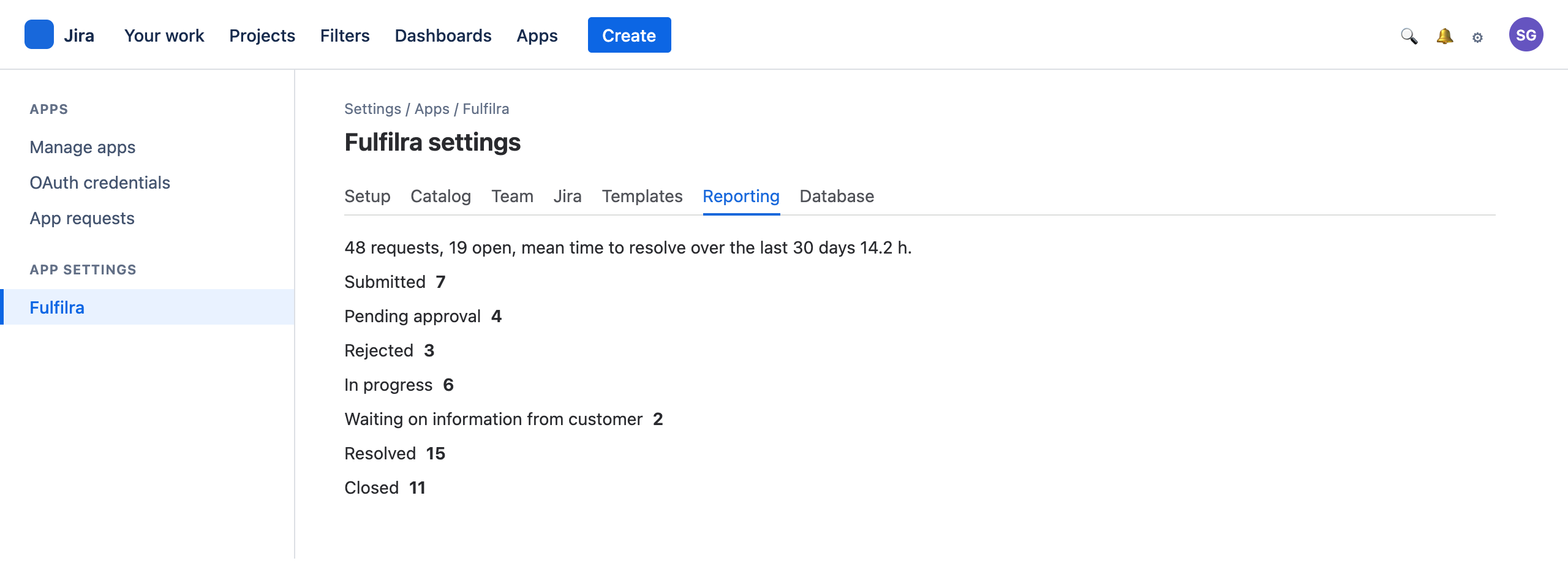
A dashboard over the whole installation, for site admins and agents. The window picker at the top right chooses 30, 90 or 365 days; everything on the page is measured over it, except the open queue, which is always as it stands right now.
The tiles are the headline. Open now and its unassigned count say how much work is in the building; Submitted and Resolved each carry a comparison with the window before, so a busy month reads as busy rather than as a number. Mean time to resolve counts from submission to resolution and shows what it was in the previous window beside it. Awaiting approval carries the age of the oldest one still waiting. Overdue now counts requests whose target date has passed and that can still be late; it leaves out requests awaiting approval and resolved ones awaiting closure.
The charts underneath answer where the work is. Requests over time puts submitted against resolved on one axis: the two lines drifting apart is the queue growing. Open by status, by request type and by agent say what is sitting where, and the age chart says how long it has been sitting.
Two numbers are worth watching in particular:
- Waiting on information from customer. A large count usually means requests that have quietly died waiting on a reply and need closing, not more agents.
- Unassigned, on the Open now tile and as its own bar in Open by agent. Requests nobody owns are the ones that age; the age chart is where they show up a week later.
Jira sync counts the requests with a linked issue and any sync failures in the last seven days. A failure count that keeps climbing means the app is failing to move issues or post comments — the Jira tab is where the mapping lives.
There is no CSAT reporting yet, and no export. There is no SLA engine, by decision: target dates, yes; business calendars and breach warnings, no.
8. Database
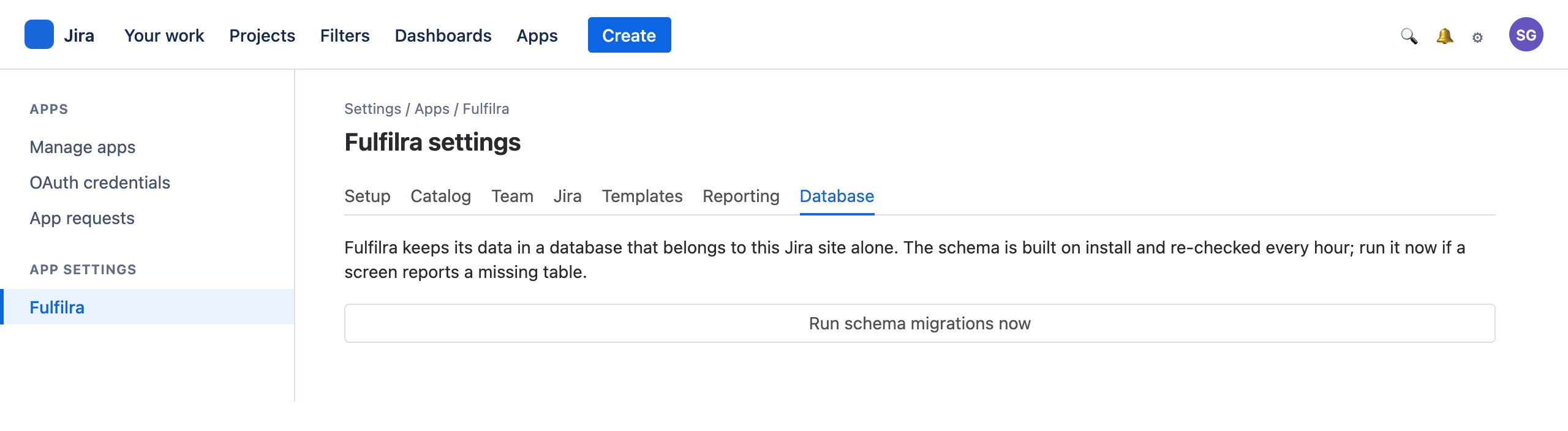
Fulfilra's data lives in a database that belongs to your Jira site alone, provisioned by Atlassian inside your tenancy. No other customer's data is in it, and none of yours leaves it.
The schema is built when the app installs and re-checked hourly. Run schema migrations now is the manual path, for the rare case where a screen reports a missing table right after installation — normally you never need this tab.
Licensing
There are no editions. Every installation has every feature: both starter packs, the full template library, three approval steps per request type, and reporting.
Your licence is handled entirely by the Atlassian Marketplace, on your existing Atlassian bill. Fulfilra itself never inspects it, so there is nothing in the app to unlock and no upgrade prompt to meet.
If a licence lapses, access is withdrawn by Atlassian and your data is untouched — it is all there when the licence is.
When something is wrong
| What you see | What it means | What to do |
|---|---|---|
| Requests pile up, nobody works them | No agent named | Team tab. This is the failure the Setup tab refuses to let you skip |
| A screen reports a missing table | Schema not built yet, just after install | Database tab → Run schema migrations. Or wait an hour |
| Requests submit, no Jira issue | No project set, or Jira refused | Jira tab. The requester's confirmation quotes Jira's own error |
| Approvers say they hear nothing | The type creates no issue and there is no notices issue — “Silent approvals”; or “Emails refused” | Jira tab: create the notices issue, and give approvers Browse on its project. Or turn issue creation on for the type |
| Board moves do not reach Fulfilra | Category mapped to “Do nothing”, or the move is one Jira may not make | Jira tab: check Events received from Jira first — if it is empty, no event is arriving and the mapping is not the problem. Then the mapping, then Sync problems |
| A card moved to “Waiting for customer” changes nothing | Only the three categories are mapped, and every in-flight status shares one | Jira tab → Rules for a named Jira status: add the status and say what it means |
| The request moves but the issue stays put | The workflow offers no transition the app can complete — often a Resolution the site has never defined | Sync problems names the transition and the field. Add a resolution in Jira, or take the field off that transition's screen |
| Customers see nothing from Fulfilra on the portal | The site-wide switch is off, no type is published, or the app's distribution is not “Sharing” | Jira tab, then Catalog, then the developer console — in that order |
| An approval waits on someone who left | They are deactivated in Atlassian | Team tab shows it; edit the type's approval step |
| A setting will not stick, with no error | The app's code and its database are on different versions | The screen names the field it could not save. Database tab → run the migrations, then redeploy if it persists |
What Fulfilra deliberately does not do
Worth knowing before somebody asks you for it.
- No email of its own. It runs entirely inside Atlassian and sends nothing outward; Jira's notifications on a linked issue are the only email, and the in-app inbox is the guaranteed one.
- No app screens for people without a Jira licence. Jira renders the app's own pages to licensed users only. Portal customers reach the catalog through the portal band above — browse, raise, track, reply, and nothing else.
- No file upload in the request form. Attachments go on the Jira issue, and are visible to anyone who can browse that project.
- No approval delegation. Change the named approver instead.
- No cross-site view. One installation, one database, one site.