
User guide · Agent
Working the queue
You will pick work up, keep the requester informed, use the linked Jira issue for the actual doing, and finish cleanly.
Where the work lives
Fulfilra holds the request: who asked, what they answered, who approved it, the conversation with them, and the audit trail. Jira holds the work: the issue on your board, with its sprint, its estimate and its links.
They stay in step in both directions, and both directions are live. Fulfilra creates the issue when the request is submitted. Moving the issue on a Jira board moves the request; moving the request moves the issue. Comments cross both ways, and so do your notes — below is exactly where each one lands.
So you can work from the board or from Fulfilra and the other side keeps up. Two things are still worth doing from Fulfilra: resolving, because that is what asks the requester to confirm, and anything you want the requester to read, because you can see there whether it reached them.
1. Open the queue
Fulfilra is in Jira's Apps menu. The Queue tab is every request on the site — there is no “assigned to me” filter, so it includes a request you raised yourself if you also hold the agent role.
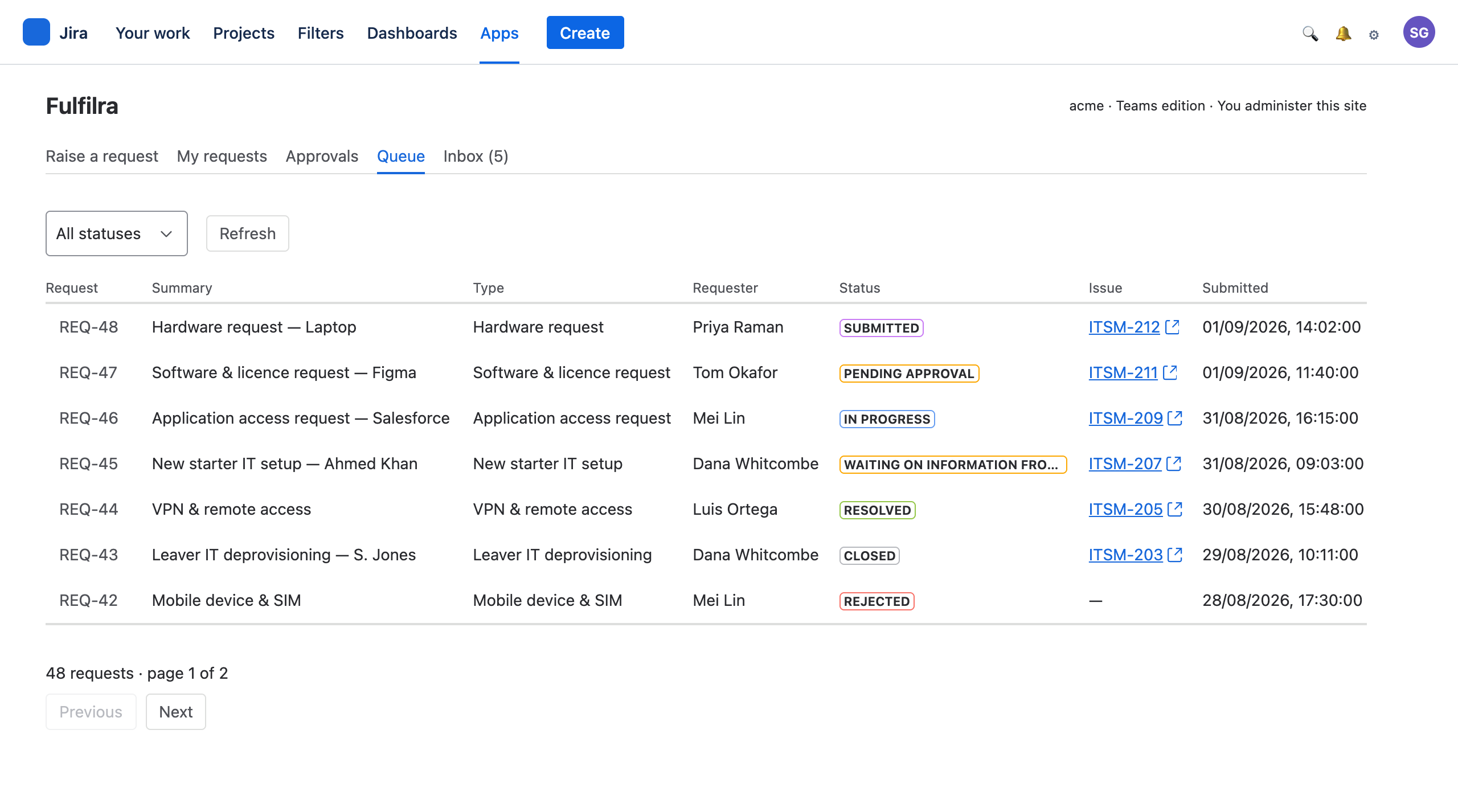
Filter by status; page through with the buttons at the foot. The Issue column links straight to the Jira issue.
The queue is in work order, not arrival order. Requests you can work come first, then those waiting on somebody else — an approver, or a requester yet to close a resolved request — then finished ones at the bottom. Within each group: Priority (Urgent, High, Normal, Low), then the soonest Due date, then whoever has waited longest. An overdue request does not jump above a more urgent one: its label says it is late, and the order stays put overnight.
The Due column reads in words — Due 6 Oct, Due today, Overdue 3 calendar days, After approval, and Met or Missed once resolved. A request raised before priorities existed reads Not set, not Normal: nobody decided it.
There is a second way in: the project tab. Inside any Jira project, a Fulfilra tab shows only requests whose issue lives in that project.
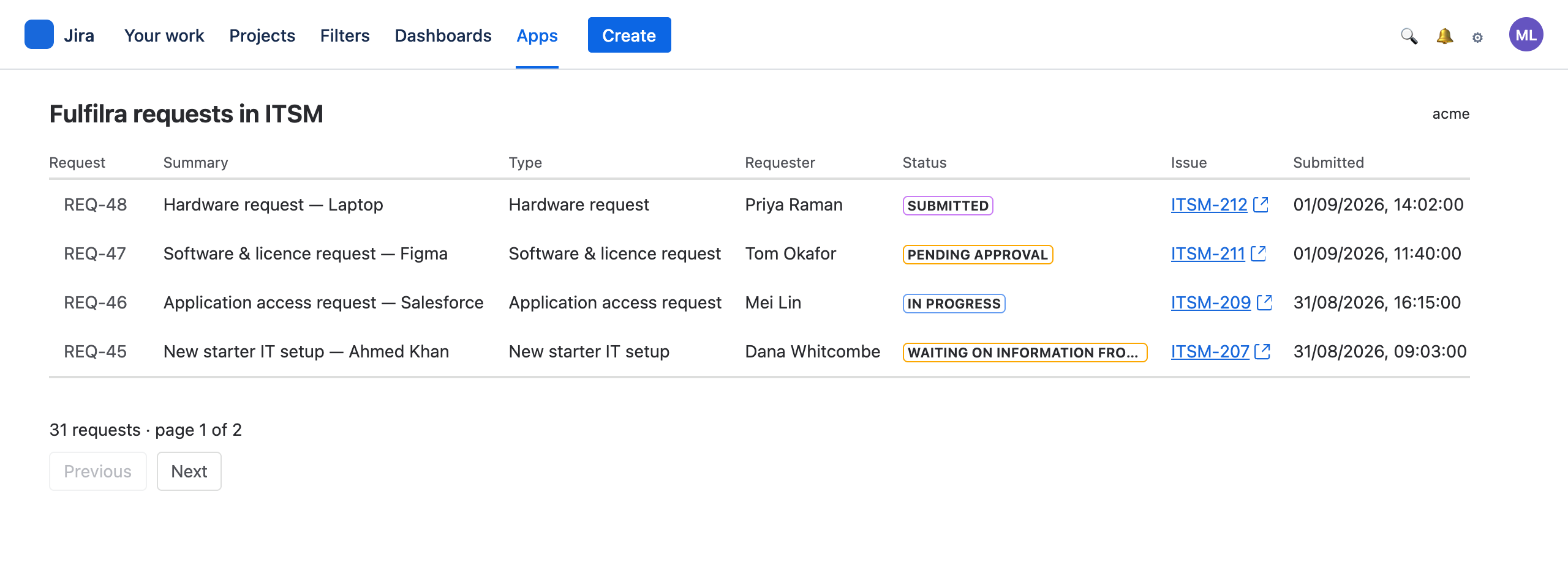
Use the project tab when you work one board, and the Queue when you cover several.
2. Pick something up
Open a request and press Start work.
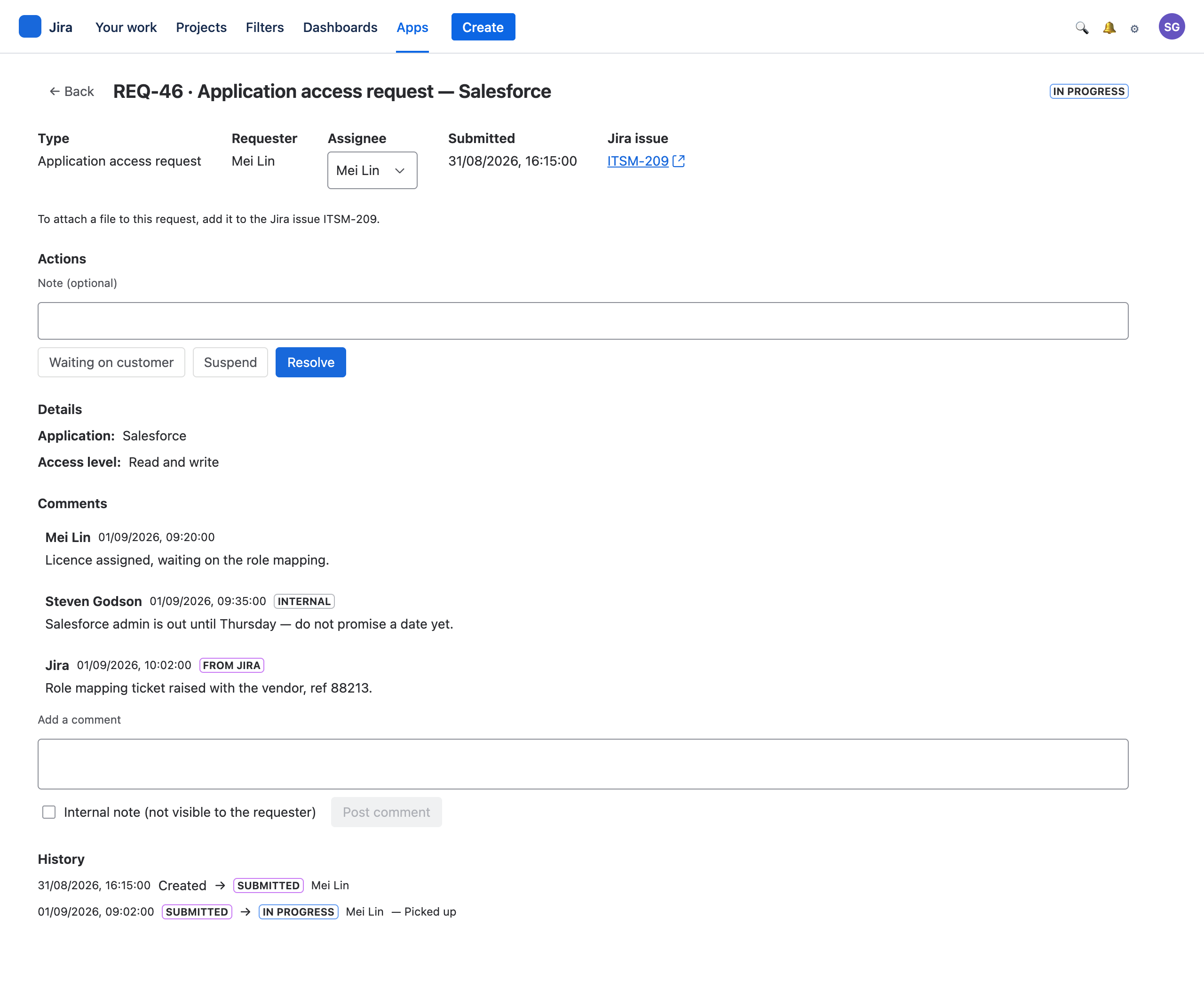
Starting work assigns the request to you if nobody has it. You can also set the assignee directly from the picker in the header — it offers the named agents, so you can hand something to a colleague.
The status becomes In progress, and the requester is told.
Priority and target. Under the header, agents and admins can:
- Change priority, with an optional reason. It reorders the queue. Requesters never see a request's priority.
- Move target date — to today or later, with a required reason the requester reads, on the request and on the customer portal, plus an Inbox notice. A date is moved, never cleared, and cannot move once the request is resolved — that would turn Missed into Met. Reopen it first if the work continues.
Both write a history row naming you. The linked issue's Due date follows the target, on every move — so move it in Fulfilra, not in Jira: a date changed in Jira is overwritten by the next move. If the Jira project has its own SLAs they are separate: Fulfilra's target is a date promised to the requester, and it never reads or changes Jira's clock.
3. Keep the requester informed
Two kinds of comment, and the difference matters.
A public comment is a message to the requester. They are notified and they see it on their copy of the request. Use it for questions, progress and anything they need to act on.
An internal note — tick the box — is for you and your colleagues. Requesters never see internal notes and are never notified about them. Use it for the things that are true but not theirs to read: “vendor is slow, do not promise a date”, “check headcount with Finance before ordering”.
An internal note is also written to the linked issue's work log, so it is there for whoever picks the work up in Jira. The work log is an agent surface — a portal customer cannot open the issue at all — which is what lets the note cross without ceasing to be internal. Jira insists a work log entry has a duration, so each note logs one minute against the issue; it never touches the remaining estimate.
A note on a transition — the box beside Resolve, Waiting on customer and the rest — lands on the issue as an internal JSM comment, prefixed with the status it explains. That is the running commentary of the work, and where a reader in Jira goes looking for it.
Comments made on the linked Jira issue are mirrored onto the request automatically, so a conversation on the board reaches the requester too. Each carries the name of whoever wrote it in Jira, marked From Jira. Only public Jira comments cross; anything marked internal in Jira stays there. Those mirrored comments deliberately send no notification — a busy issue would otherwise flood the requester — so if something on the issue genuinely needs their attention, say it as a Fulfilra comment as well.
4. Move it along
The buttons you see depend on where the request is. The useful ones:
| Button | Use it when | The requester |
|---|---|---|
| Start work | You are picking it up | is told work has started |
| Waiting on customer | You need something from them | is told, and the request stops |
| Resume work | They have replied | is not notified — nothing has changed for them |
| Suspend | Blocked on something outside your control | is not told, and does not see this state at all |
| Unsuspend | Unblocked | is not notified |
| Resolve | You believe it is done | is told, and asked to confirm |
Waiting on customer is the one to use properly. It is the status that tells everyone — including reporting — that the ball is not in your court. Leaving a request In progress while you wait on a reply makes your queue look worse than it is and hides the requester's action from them.
Suspend is internal. A suspended request does not show the requester anything unusual; the state and its reason stay in your view. Use it for “waiting on a vendor”, not for “waiting on the requester”.
5. Finish
Press Resolve and say what you did in the note. The requester is told, and they get two choices: close it, or reopen it if you have not actually solved their problem.
Requesters close their own requests. That is deliberate: a request the person who raised it has agreed is finished is a much stronger signal than one closed by the person who did the work. You can close on their behalf when they have gone quiet.
If a request comes back — reopened — it returns to In progress with its whole history intact, including your first resolution. Its Jira issue leaves Done too, by the workflow's own reopen step; if the workflow offers no way on from there, the Jira tab's Sync problems says so.
Situations
No Jira issue on a request.
Either the type is configured not to create one, or creation failed at submission. If the type creates issues, the request detail offers Create the Jira issue; press it. If it does not, the request is handled entirely in Fulfilra — fine for quick things, but you get no board, no sprint and no email to the requester. It also will not turn up in a Jira search or a service-desk queue built in Jira itself: there is no Jira issue for a search to find. The Queue tab here is the only place it lives.
The board and the request disagree.
Fulfilra maps Jira status categories to request statuses: In Progress moves a request to In progress, Done resolves it, and To Do deliberately does nothing. Your administrator can go finer with a named status rule — “Waiting for customer” parking the request rather than leaving it In progress — which is worth asking for if your workflow has several in-flight statuses that mean different things.
Some moves are refused on purpose: Jira can never approve, reject, close or cancel a request, because those are decisions a person makes in Fulfilra. A refused sync is recorded where your administrator can see it, not silently dropped.
The request moved but the issue did not.
Usually the workflow: the app takes a transition your project actually offers, and if the only route into Done demands a field it will not invent — or a Resolution your site has never defined — it stops and records why rather than guessing. Your administrator sees it under Sync problems on the Jira tab.
A request needs approval and is stuck.
Only the named approver can decide. Check who it is on the request, and chase them. If they have left the company, your administrator can change who the type names.
Somebody attached something sensitive to the issue.
Anyone who can browse the project can see it. If it should not be there, remove it in Jira and tell the requester where to send it instead.
The queue is enormous.
Filter by status. Work Waiting on information from customer separately — those are usually stale and often just need closing.