
User guide · Requester
Raising and tracking a request
You will find the catalog, fill in a form, watch what happens to it, talk to the person handling it, and close it when you are satisfied.
1. Find Fulfilra
Fulfilra lives in Jira's Apps menu, in the top bar.
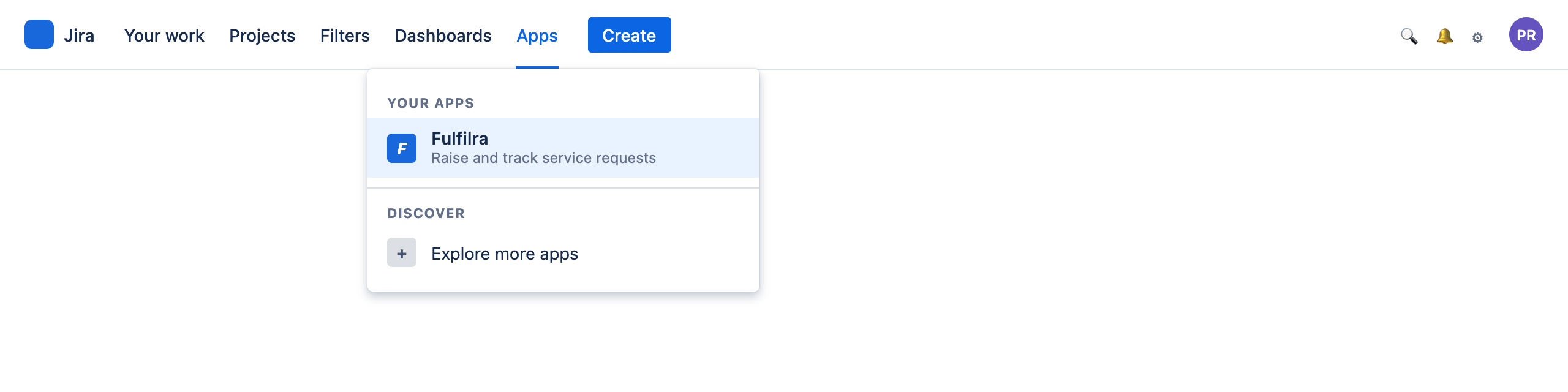
That is the whole of getting in. There is no separate website, no second password, and nothing to install on your machine. If you can open Jira, you can raise a request.
Can't see it? The app is installed per site, so if Fulfilra is not in your Apps menu it has not been installed yet — or you are on a different Jira site. Ask whoever administers Jira for you.
2. Choose what you need
The first tab, Raise a request, is the catalog. Request types are grouped under headings your administrator chose — usually by the team that handles them.
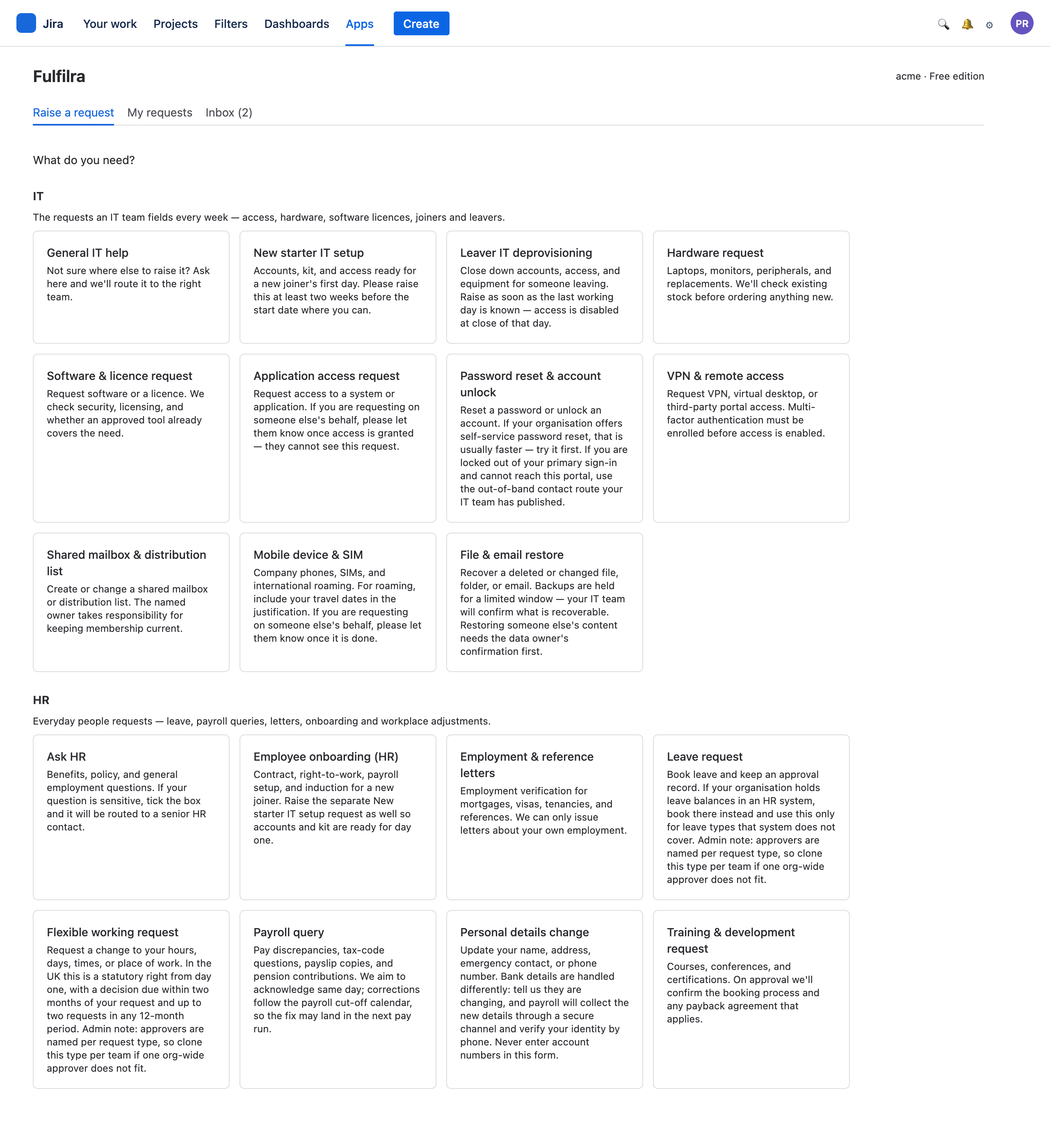
Pick the one that fits. If nothing quite does, most sites publish a catch-all (“General IT help”, “Ask HR”) that routes to a human who will work out where it should go — that is a better choice than forcing your request into a form that does not fit.
Nothing here at all? Your administrator has not published any request types yet. The screen says so rather than showing you an empty page.
3. Fill in the form
Each request type has its own questions. Fields marked * are required.
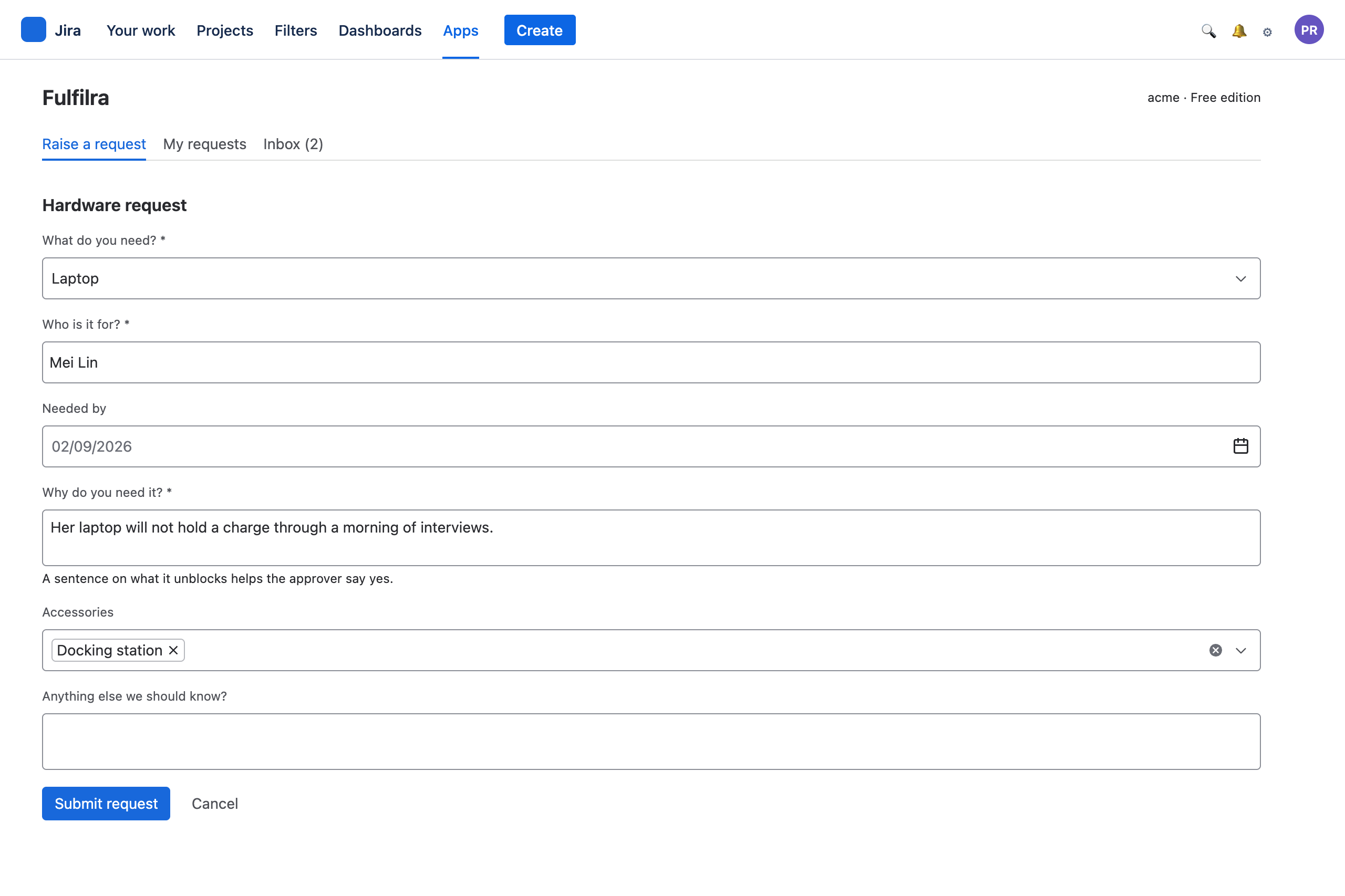
Two things worth knowing:
- Write the justification for someone who was not in the conversation. If the request needs approval, the person deciding may not know the background. “Current machine fails to boot twice a week, cost me a day this month” gets a faster yes than “need a new laptop”.
- Leading and trailing spaces are trimmed. Paste freely.
Attachments. Fulfilra's form has no file picker. If your request creates a Jira issue — most do — attach files to that issue once it exists; the request page tells you its key and links to it. Be aware that a file on a Jira issue is visible to everyone who can browse that project, which is usually a wider audience than the people handling your request. Do not attach anything you would not want a colleague reading. If it is genuinely sensitive, say so in the request and let the agent tell you where to send it.
Press Submit request.
4. Read the confirmation
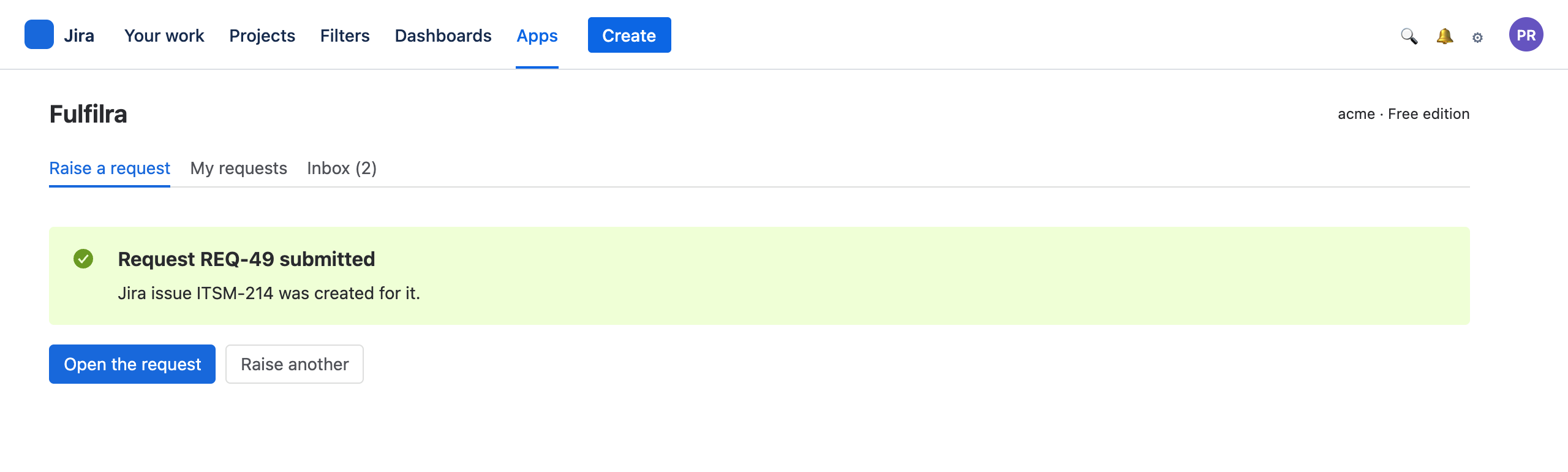
You get two identifiers, and they are for different things:
REQ-48is your request's reference. Quote it to anyone in your own team.ITSM-212is the Jira issue Fulfilra created for it. That is where the work happens, and where you attach files.
If the Jira issue could not be created — the project is misconfigured, or Jira was briefly unavailable — the confirmation says so plainly and names the error. Your request is still recorded; an agent can create the issue afterwards. You have not lost anything.
Pressed Submit twice? You get one request, not two. Fulfilra recognises the repeat and shows you the original.
5. Watch it happen
The My requests tab lists everything you have raised, newest first, with a status filter.
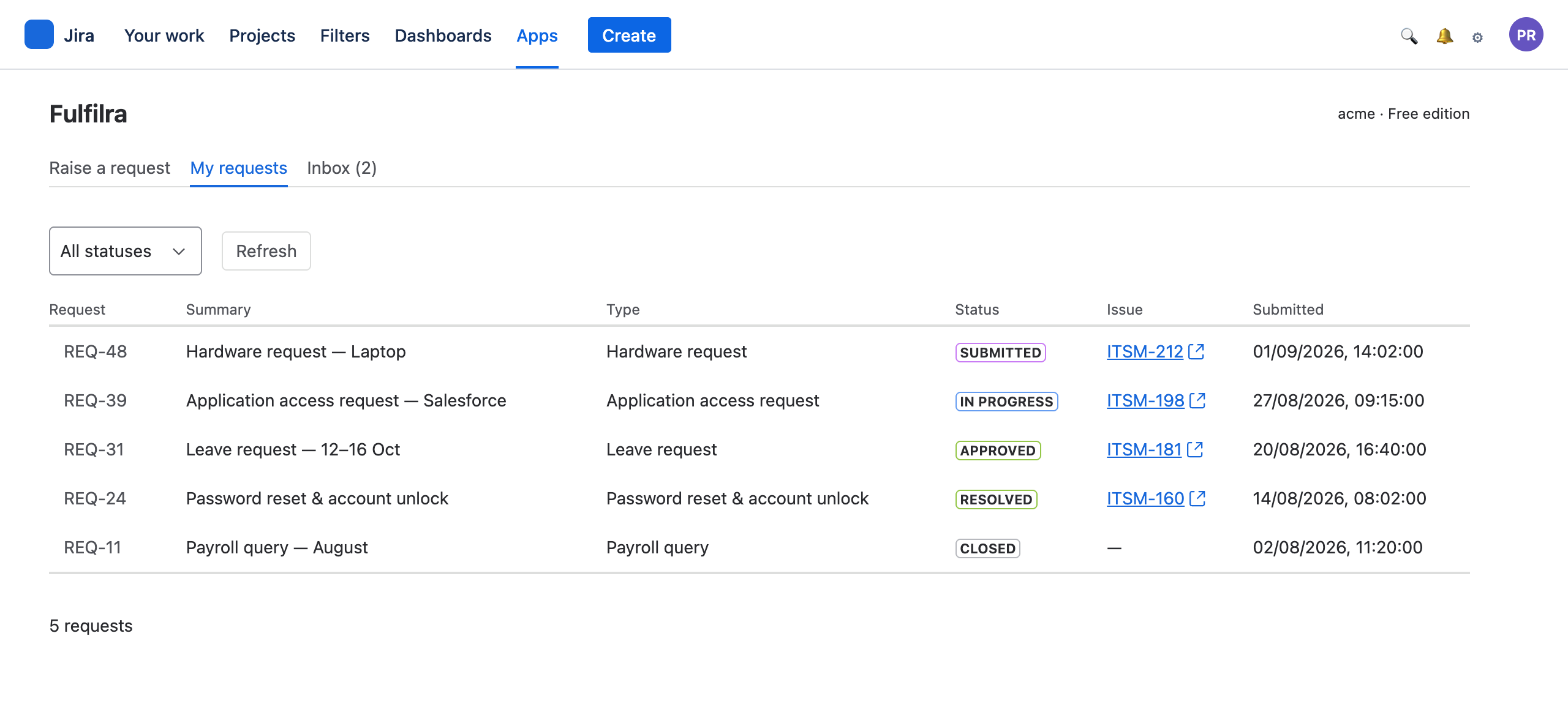
You only ever see your own requests here. Colleagues' requests — including ones raised to the same team on the same day — are not visible to you.
| Status | What is happening |
|---|---|
| Submitted | Recorded, waiting for someone to pick it up |
| Pending approval | Waiting on a named person to say yes or no |
| Approved | Approved, waiting for work to start |
| Rejected | An approver said no. The reason is on the request |
| In progress | Somebody is working on it |
| Waiting on information from customer | They need something from you. Open it and read the comments |
| Resolved | Done, in the agent's view. Your turn to check |
| Closed | Finished and agreed |
| Cancelled | You or an administrator withdrew it |
Two are worth acting on the moment you see them. Waiting on information from customer means the request has stopped and will not move until you reply. Resolved means somebody thinks they have finished — check, and either close it or reopen it.
6. Open a request
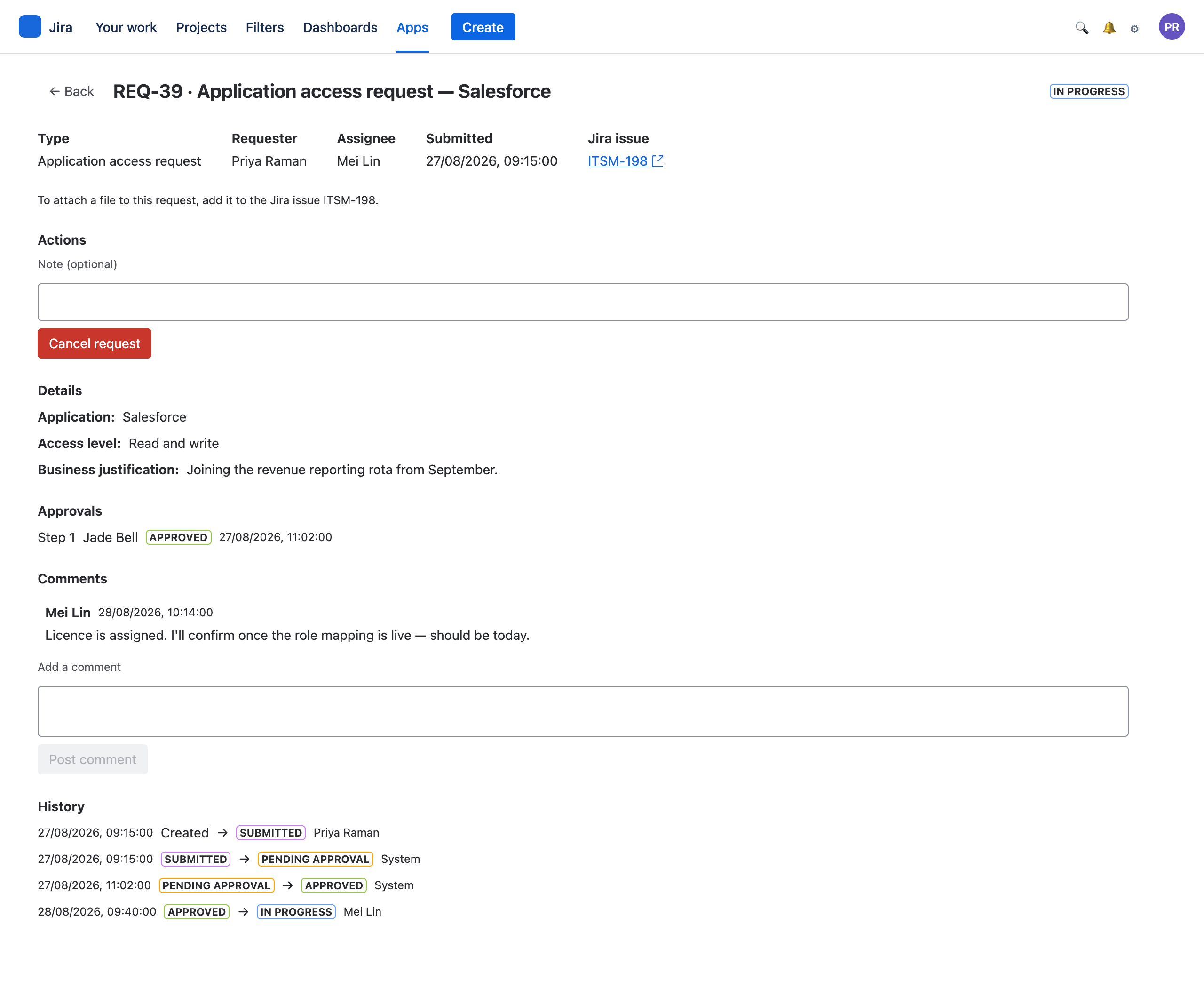
Top to bottom: the reference and summary, the current status, who has it, the Jira issue, then your answers, the approval steps and how each went, the conversation, and the history.
Target. A line under the header says when to expect it: a date, “once approved” with the number of working days, or “No target date was set for this request”. Once the date has passed it says Overdue in words. If an agent moves the date, you see the new date and their reason, and your Inbox tells you. Dates are working days, in UTC, so near midnight one can read a day off where you are.
What you can do here depends on where the request has got to. Common ones:
- Cancel request — while it is still Submitted, Pending approval or Approved. Once work has started, ask the agent in a comment instead.
- Close — when it is Resolved and you agree it is done.
- Reopen — when it is Resolved and it is not. Say why in a comment.
Comments. Write in the box and press Post comment. The person handling your request is notified. This is the right place for “any update?”, for answering a question, and for the detail you forgot at submission time.
Some things on a request are not shown to you, deliberately: internal notes between agents, and an approver's private commentary on a step. A rejection's reason is shown, because that is the one thing you most need.
7. Notifications
Everything that happens to your requests lands in the Inbox tab. The tab shows an unread count.
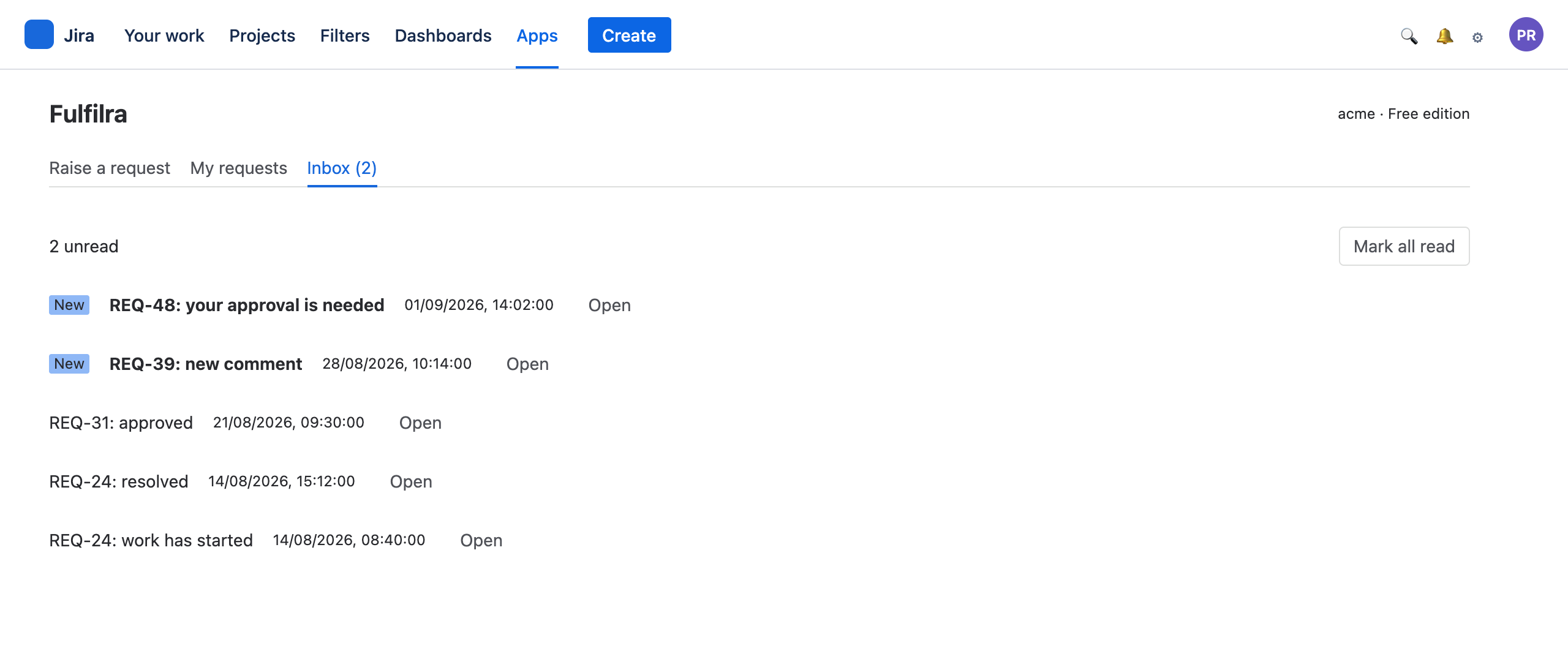
Read this if you read nothing else in this guide. The inbox is the only place Fulfilra is guaranteed to tell you anything.
When your request has a linked Jira issue, Jira may also email you — in Jira's words, about the issue rather than the request, and only if your Jira notification settings allow it. When the request has no Jira issue — some types are configured that way, for confidentiality — Jira may email you about an issue called “Fulfilra notices”, if your administrator has set one up. It names your request's reference and what happened, and nothing else; open Fulfilra for the rest.
So: if you are waiting on something, check the inbox. Do not wait for an email that may never come.
Quick answers
How do I chase a request?
Comment on it. That notifies whoever has it, and leaves a record — better than a message that vanishes into a chat channel.
Can I raise a request for a colleague?
Raise it yourself and name them in the form. Some types have a “who is this for?” field. Notifications come to you, so pass them on.
I raised it against the wrong type.
Cancel it and raise it again, while it is still early. Once work has started, ask the agent — they may be able to carry on regardless.
Somebody else needs to see it.
Give them the Jira issue key. Anyone who can browse that project can follow the work there, even though they cannot see your Fulfilra request.
Somebody without a Jira licence needs to raise a request.
They can, from the service desk portal, if an administrator has published that type to it. It is a different screen with less on it — see the customer guide.
Why can I see an “Approvals” or “Queue” tab?
Because you have been given the approver or agent role. See the approver or agent guide.